
As an Amazon Associate, I earn from qualifying purchases at no extra cost to you.
How to Change Time on Microwave (Easy Guide)

Microwave clocks always blink at the worst time, right after a storm or a quick unplug. Setting it right isn’t a puzzle, once you know where to look. Every brand hides the clock button in a slightly different spot, but the logic stays the same. This guide walks through the exact steps, plus a few tricks for tricky models. By the end, expect to fix that blinking clock in under a minute.
You just need to find the button labeled Clock, Timer, or Time, and press it once. Then, type in the current hour and minute using the number pad. Next, press Clock, Start, or Enter again to lock it in, and the numbers should stop flashing. If buttons feel unresponsive, hold the Clock button for three seconds instead of a quick tap. Once set, the clock should hold steady until the next power outage.
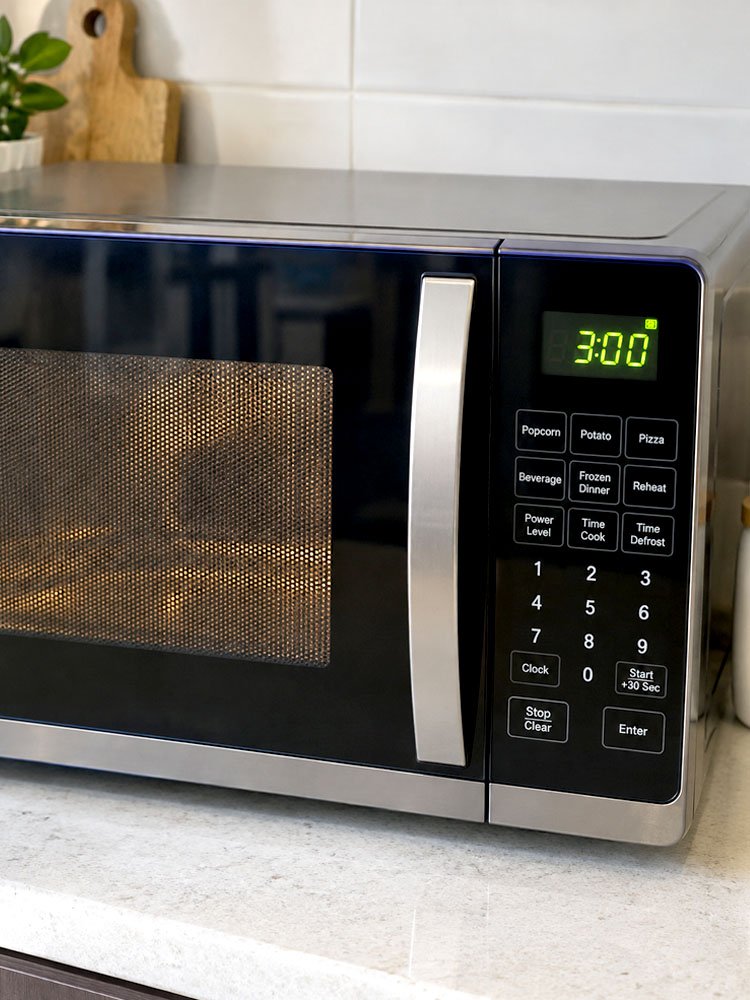
Why Does the Microwave Clock Keep Resetting?
A microwave clock resets for a few common reasons, and most are simple. Power problems, weak backups, and worn buttons top the list.
Power Outage Or Surge
Every time power flickers, even briefly, the clock loses its memory completely. Most microwaves have no battery backup, so the display defaults back to 12:00. Storms, tripped breakers, and unplugging for cleaning all trigger this same reset.
Unplugging For Cleaning
Pulling the plug to wipe the counter feels harmless, but it wipes the clock too. Once power returns, the display flashes 12:00 until someone resets it manually. It’s worth resetting the time right after plugging back in.
Daylight Saving Time Shift
Twice a year, clocks shift by an hour, and microwaves don’t adjust on their own. The time needs a manual nudge each spring and fall. Skipping this step throws off cook timers too.
Faulty Control Board
Sometimes the clock resets without any power cut, and that points to the control board. Heat and moisture near the buttons wear these boards down over years of use. Random resets alongside a flickering display usually mean the board needs a look.
Worn Out Button Membrane
Buttons that stick or need several presses often mean the membrane underneath has worn thin. This causes double inputs, so the clock ends up wrong even after a fresh setting. Heavy wear usually means a replacement part is needed.
New Appliance Setup
Brand new microwaves start with a blank clock, since they’ve never been plugged in before. This is expected, not a sign of trouble. Setting the time is simply the last step before daily use begins.
Getting ahead of these resets saves time later, since the fix is almost always quick. Keep these points handy:
- Storms and outages wipe the clock completely
- Unplugging for cleaning resets the time too
- Daylight saving needs a manual hour shift
- A failing control board causes random resets
- Worn buttons often lead to wrong entries
- New units always start with a blank display
How to Change Time on Microwave the Right Way
Every brand handles this a bit differently, but the core steps rarely change much. Following the right order avoids most mistakes.
Locate The Clock Button
Look across the panel for a button marked Clock, Time, or a small clock icon. It often sits near the power and cancel buttons, or next to the timer function. Press it once to wake up the clock setting mode. The display usually blinks or shows dashes, confirming it’s ready for new input.
Enter The Time Digits
With clock mode active, type the current hour and minute using the number pad. Most microwaves expect a four digit entry, so 6:05 becomes 0605. Some models ask for AM or PM separately. Typing slowly and checking the display after each digit avoids mistakes.
Confirm And Lock The Time
After entering the digits, press Clock, Start, or Enter to save the new time. The display usually stops blinking right away, confirming success. Some brands need one extra press to fully lock it in. Testing it by walking away for a minute confirms the setting truly stuck.
Handle Microwaves Without A Clock Button
Some basic models skip a dedicated clock button entirely. In these cases, the Timer button often doubles as the clock button instead. Pressing and holding it for a few seconds switches the display into time entry mode. A quick look at the manual clears up any remaining confusion.
Reset After A Power Outage
Right after power returns, the display almost always flashes 12:00 until someone resets it. This is completely normal, not a sign anything is broken. Simply follow the same clock button steps used for any other change. A sticky note near the display works well as a reminder.
Fix A Clock That Won’t Change
When the numbers won’t budge, a few things could be wrong. Weak button response, a stuck panel, or a firmware quirk often causes this. Unplugging for a full minute before trying again clears most glitches. Persistent trouble past that usually points to a hardware issue worth a professional look.
Getting the clock set right the first time saves repeated frustration. Keep these tips close by:
- Find the labeled clock or timer button first
- Enter digits slowly to avoid mistakes
- Confirm the setting with a second button press
- Check for a hidden clock function on basic models
- Reset the time right after any outage
- Unplug briefly if buttons stop responding
Why Won’t the Microwave Clock Change?
A clock that refuses to update usually points to one of a few familiar culprits. Sometimes the buttons themselves are worn down after years of presses. Other times, the microwave sits stuck between cook and clock settings, blocking new numbers from registering. A quick unplug often clears this faster than expected.
Some models also have a child lock active without anyone realizing it, quietly blocking every button. Checking for a small lock icon on the display clears up this mystery fast. Firmware quirks on newer smart microwaves can cause a temporary freeze too, especially after an update. Restarting by unplugging usually resolves it.
If none of that works, the control board itself might be the problem, especially on older units. Heat from constant cooking cycles wears these parts down over time. A repair technician can test the board and confirm whether a replacement makes sense.
Working through these checks one at a time, starting with the simplest, saves time and money.
- Check for an active child lock icon first
- Unplug for a full minute to reset the panel
- Press buttons firmly and slowly, one at a time
- Look for a stuck cook or timer mode
- Update firmware on smart or connected models
- Call for repair if the board seems worn
How Do You Set the Time on a GE Microwave?
GE microwaves keep things simple, and the process barely changes across most models. Locate the Clock button near the display, press it once, and the screen should blink or show dashes waiting for input. Type the current time using the number pad, same as entering a cook duration.
Once the digits are in, press Clock again to save it, and the flashing should stop. Some models include a separate AM or PM button, so check that setting before finishing. Built-in models sometimes pair the Clock button with the Timer button instead, so a quick glance at the panel helps.
For GE microwaves with Wi-Fi features, the clock often syncs automatically once connected to the home network. This removes the need for manual entry, though a manual reset still works if the connection drops.
- Locate the Clock button near the display
- Enter the current time using the number pad
- Press Clock again to lock in the setting
- Check for a separate AM or PM button
- Look for Wi-Fi sync on newer smart models
- Confirm settings through the companion app if available
What Do You Do When the Microwave Clock Blinks 12:00?
A blinking 12:00 almost always just means the power cut out, nothing more serious. It could follow a storm, a tripped breaker, or someone unplugging the unit during cleaning. The fix stays the same regardless of cause and takes less than a minute. Locating the Clock or Time button is always the first move.
Once found, press it, then type the current hour and minute using the number pad. A second press, or sometimes Start, locks the new time in place. If the display keeps blinking, a light unplug and replug often clears whatever caused the hang up.
Some households find it blinks repeatedly if power in that area flickers often. In that case, resetting the clock becomes a small recurring chore. A quick note near the microwave with the reset steps saves a search through the manual.
- Locate the Clock or Time button first
- Type in the correct hour and minute
- Press Clock or Start again to save it
- Unplug briefly if the blinking continues
- Wait a few seconds before plugging back in
- Keep a written note nearby for frequent resets
How Do You Change the Time on a Microwave Without Buttons?
Touchscreen and smart microwaves skip physical buttons entirely, relying on a digital panel or a connected app. Finding the clock option usually means tapping the main menu, then scrolling toward settings. Most layouts group time and date together under one heading, making it easy to spot.
From there, tapping the time field brings up a number pad right on the screen, working like a phone keypad. Saving the change usually just needs a tap on a checkmark or Done button. Smart models connected to Wi-Fi sometimes handle this automatically, pulling the correct time from the network.
For models controlled through an app, opening it and finding the microwave settings page reveals a time sync option. Toggling that on lets the app keep the clock accurate without manual typing.
- Open the main menu or settings icon
- Look for a combined time and date option
- Tap the time field to bring up a keypad
- Save changes with a checkmark or Done button
- Check the companion app for auto sync options
- Toggle sync off for manual control instead
Final Thoughts
I hope these steps take the guesswork out of that flashing 12:00 for good. Every microwave hides its clock button a little differently, but the pattern stays close across most brands. Once the timing clicks, resetting it becomes a five second habit rather than a chore. Keep this guide handy for the next power flicker.
| Microwave Brand | Clock Button Location | Typical Reset Steps |
|---|---|---|
| GE | Top panel, near display | Press Clock, enter time, press Clock again |
| Samsung | Labeled Clock button | Press Clock, type digits, press Start |
| LG | Near Timer button | Press and hold Clock, enter time |
| Whirlpool | Top left of panel | Press Clock, use number pad, confirm |
| Panasonic | Marked Clock icon | Press Clock, enter hour and minute |
| Frigidaire | Near Timer/Clock combo | Hold Timer/Clock, type time, press Start |
| Kenmore | Top row of buttons | Press Clock, enter digits, press Enter |
| Sharp | Small Clock button | Press Clock twice, enter time |
| Toshiba | Labeled Clock/Timer | Press Clock, input time, confirm |
| Smart/Wi-Fi models | Touchscreen settings menu | Tap Settings, select Time, sync or type manually |
Frequently Asked Questions
Is It Normal for a Microwave Clock to Reset After Every Outage?
Yes, this is normal, since most microwaves lack a battery backup for the clock. Every time power cuts out, even briefly, the clock loses its memory and drops back to 12:00. Resetting it takes under a minute once the right button is found.
Can a Microwave Clock Be Set Without a Manual?
Absolutely, since most brands follow a similar pattern involving a Clock button and the number pad. Pressing that button, entering the current time, then confirming with a second press usually does the trick. Touchscreen models use an on screen keypad instead.
Are All Microwave Clock Buttons Labeled the Same Way?
Not exactly, since some brands use the word Clock while others use Time, Timer, or an icon. The core function stays the same across nearly every brand on the market. Checking the panel near the number pad usually reveals which button controls the clock.
Do Smart Microwaves Set Their Own Clock Automatically?
Many do, especially once connected to home Wi-Fi through a companion app during setup. This sync pulls the correct time automatically, removing the need for manual entry after outages. Turning off the sync feature switches the unit back to manual setting.
Does Daylight Saving Time Affect Microwave Clocks?
Yes, since most microwaves don’t adjust automatically for the seasonal change each spring and fall. A manual hour shift keeps the display accurate, especially for delay cook features. Smart models connected to the internet sometimes handle this shift on their own.
Should the Microwave Be Unplugged Before Setting the Clock?
No, unplugging isn’t required for a normal reset, and doing so will only wipe the time again. Simply use the Clock button while the unit stays plugged in and powered normally. Unplugging only helps when buttons seem unresponsive or stuck.
Will Pressing the Wrong Button While Setting the Time Cause Damage?
No, pressing an unrelated button won’t damage the microwave in any real way. Worst case, the clock mode exits early or the wrong digits get entered, both fixed with a quick restart. Pressing the Clock button again usually gets things back on track.
Can a Worn Control Panel Prevent the Clock From Being Set?
Yes, a worn or sticky panel can block digits from registering correctly during setup. This often shows up as double inputs or a clock that reverts to blinking soon after saving. Heavy wear usually calls for a repair visit.
